Controller Support & Troubleshooting
Gamble With Your Friends Controller Support: What Works and How to Troubleshoot
Trying to play with a gamepad? This guide separates official confirmation from community reports, then gives you a low-risk Steam Input test plan for a mixed keyboard-and-controller lobby.

The short answer on Gamble With Your Friends controller support
Gamble With Your Friends controller support should be treated as unconfirmed until the current official Steam listing or a developer announcement explicitly describes native gamepad support. This wiki should not turn a community report, a controller icon, or a Steam Input experiment into a promise that every controller and menu will work.
You can still test a controller safely. Connect it before launching, start with Steam's default controller configuration, and test the title screen, lobby, menu navigation, and one short run before inviting a full group. Keep a keyboard and mouse available so one failed input device does not waste the whole session.
The practical goal is not to guess a universal button map. It is to identify whether your controller is detected, whether the game receives the important inputs, and whether the setup remains usable when another player joins through keyboard and mouse. If any of those steps fail, return to a clean baseline and use the official Steam listing or developer channels for new support information.
Evidence Boundary
What should count as proof of controller support?
Controller support can mean several different things: a developer-tested native map, a Steam Input layout, a community remap, or a controller that happens to move through one menu. Treat those as different levels of confidence.
| Signal | What it can tell you | How to use it |
|---|---|---|
| Official Steam feature or developer note | The strongest public evidence for intended support | Use it as the primary source and check the date after major updates |
| Steam Input configuration | The platform may translate gamepad buttons into keyboard or mouse actions | Test it as a fallback; do not call it native support |
| A community layout or discussion | A useful report for a particular controller, OS, or game version | Treat it as anecdotal and record the exact setup before copying it |
| One button works in a menu | Only a narrow part of the input path works | Continue testing navigation, lobby actions, and a short run |
Low-Risk Test
How to test Steam Input before a group session
Steam Input is the most useful first experiment because it gives you a reversible profile without asking you to install an unknown remapper. Start with the default configuration and change one setting at a time. Do not download a random executable just because a search result promises a controller fix.
Use a private or low-stakes test. The point is to discover the smallest working setup, not to spend an hour perfecting a layout before you know whether the menus and lobby are usable. If the game behaves differently after an update, delete the custom profile or return to the default configuration before diagnosing anything else.
Connect and confirm the device
Connect the controller before launching the game. Confirm that Steam sees the device and that the operating system is not switching between two duplicate inputs. If the device is not visible in Steam, solve that layer first.
Open the game's Controller settings
From the Steam library, open the game's properties and inspect the Controller section. Keep the first test close to the default Steam Input behavior so you know what changed if a later custom layout fails.
Test menu navigation
Before joining friends, test confirm, back, movement, selection, and any prompt that appears on the title screen or lobby. A partial menu result is a warning, not a pass.
Create a private lobby
Open a private lobby and check whether the controller can select a game, buy or use an item, and return to the correct menu. Keep keyboard and mouse nearby for recovery.
Run one short session
Test one short run with the same controller you plan to use later. Pay attention to prompts, camera or cursor behavior, chat, and whether a second input device steals focus.
Save the smallest working profile
If the layout works, note the controller model, Steam Input status, and game version. Avoid adding extra remaps until the basic profile survives a restart and a second player joins.
Group Setup
Can keyboard and controller players share one lobby?
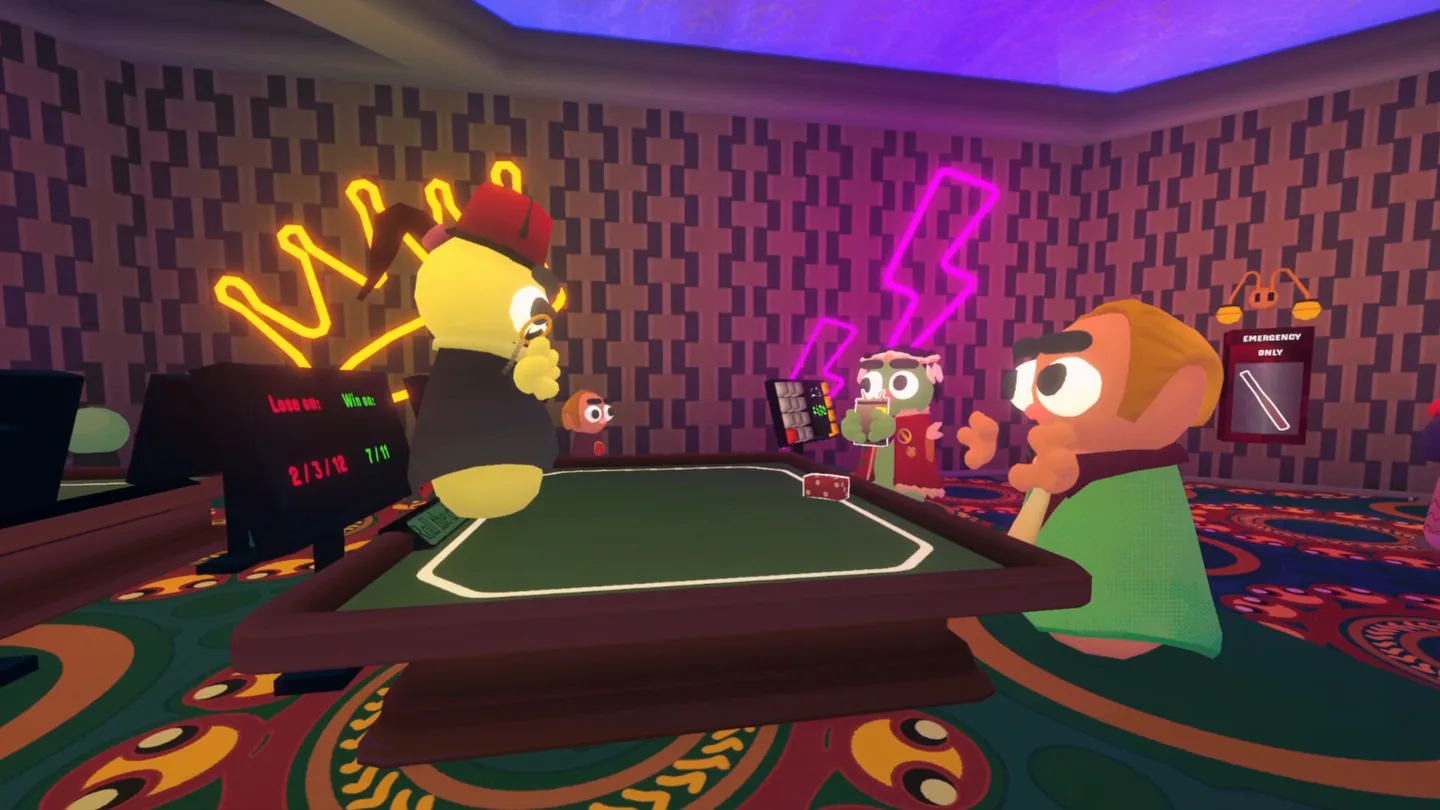
A mixed-input lobby is a sensible test because controller problems often appear only after another player joins. One person using a keyboard and mouse does not automatically prove that a gamepad will receive the same prompts, and a working gamepad does not prove that two controllers will behave the same way.
Keep the first group session simple: use the same game build, avoid new mods, confirm everyone can see the lobby, and agree on a fallback input method. If the controller user cannot complete a menu action, let that player switch to keyboard and mouse while the rest of the group continues.
One controller first
Test one gamepad with one keyboard-and-mouse player before adding more devices. This isolates device mapping from lobby and network problems.
Best for: first verificationNo new mods during testing
Use a vanilla baseline. A modded lobby can introduce a separate compatibility issue and make it impossible to tell whether the controller or the mod caused the failure.
Best for: clean diagnosisAgree on the fallback
Keep a keyboard, mouse, or alternate controller nearby. A fallback is more useful than a long argument about whether a community layout should work.
Best for: protecting group timeRecord the setup
Write down the controller type, connection method, Steam Input mode, game version, and the exact menu or prompt that failed. That turns a vague report into useful troubleshooting evidence.
Best for: repeat sessionsFixes
Controller troubleshooting by symptom
Change one variable at a time. Start with the device and Steam layers, then test the game menu, lobby, and run in that order.
| Symptom | Likely boundary | What to try next |
|---|---|---|
| Steam does not see the controller | Cable, Bluetooth, driver, or operating-system layer | Reconnect the device, test another port or pairing mode, and confirm Steam sees it before opening the game |
| Steam sees it but the game ignores it | Native input or Steam Input configuration | Open the game's Controller settings, start with the default profile, restart the game, and test the title screen |
| Only some buttons work | Partial mapping or focus conflict | Check confirm/back and menu navigation first; remove custom bindings before adding one change |
| The cursor moves but prompts do not | Keyboard/mouse emulation without a complete gamepad map | Treat the setup as a partial workaround and keep keyboard and mouse available |
| It works alone but fails after a friend joins | Mixed input, focus, lobby state, or a second device | Test one controller with one keyboard player, restart the lobby, and record which prompt loses focus |
| A patch breaks an old layout | Game update or changed Steam Input profile | Return to default, verify the current official listing, then rebuild the smallest profile instead of stacking fixes |
Safe Boundaries
What this controller guide will not claim
Search results often mix native support, Steam Input, community layouts, unofficial remappers, and unrelated platform questions. Those are not interchangeable. A useful guide should preserve uncertainty when the official source does not make a clear promise, especially when a group may buy or configure hardware based on the answer.
Do not disable security tools, download repacks, or install an unknown controller fixer to solve one gamepad problem. Use the official Steam listing and official Steam settings first. If a community layout is necessary, treat it as a user-sourced experiment and keep a clean launch path ready.
- Check the official Steam listing after meaningful patches.
- Test the exact controller model and connection method you will use.
- Keep keyboard and mouse available during the first lobby.
- Use a clean, unmodded profile while diagnosing input.
- Do not confuse Steam Input with native developer support.
- Record the game version and failed prompt before asking for help.
Source Check
Official and community sources to check
Use official sources for current availability and platform claims. Community discussions can reveal edge cases, but they are reports from particular setups rather than guarantees for every player.
Official Steam listing
Check the live store page for current platform information, features, updates, reviews, and developer-published details.
Steamworks Steam Input overview
Use the official Steamworks documentation to understand the difference between Steam Input mappings and native game support.
Steam Community discussions
Community reports may help you compare a controller model or layout, but verify the game version and treat the report as user-sourced evidence.
FAQ